
सीधा जवाब
Autoload bloat diagnose करने से पहले total bytes, बड़े option names और उनकी ownership देखें। सिर्फ options की संख्या देखकर cleanup न करें। इस audit में WebTakniki के वास्तविक Site Health screenshot ने 718 autoloaded options और 148 KB total size दिखाया और result acceptable बताया। यह bloat incident या performance fix का प्रमाण नहीं है।
यह read-only inspection है। Website के database में कोई option delete/update नहीं किया गया। नीचे वास्तविक WordPress admin screenshots में measured result इस्तेमाल किया गया है।
1. Site Health का overall context पढ़ें
Tools → Site Health खोलें। Status में passed tests और recommended improvements अलग देखें। Good status हर page के fast होने की guarantee नहीं है; इससे केवल संबंधित checks की स्थिति पता चलती है।
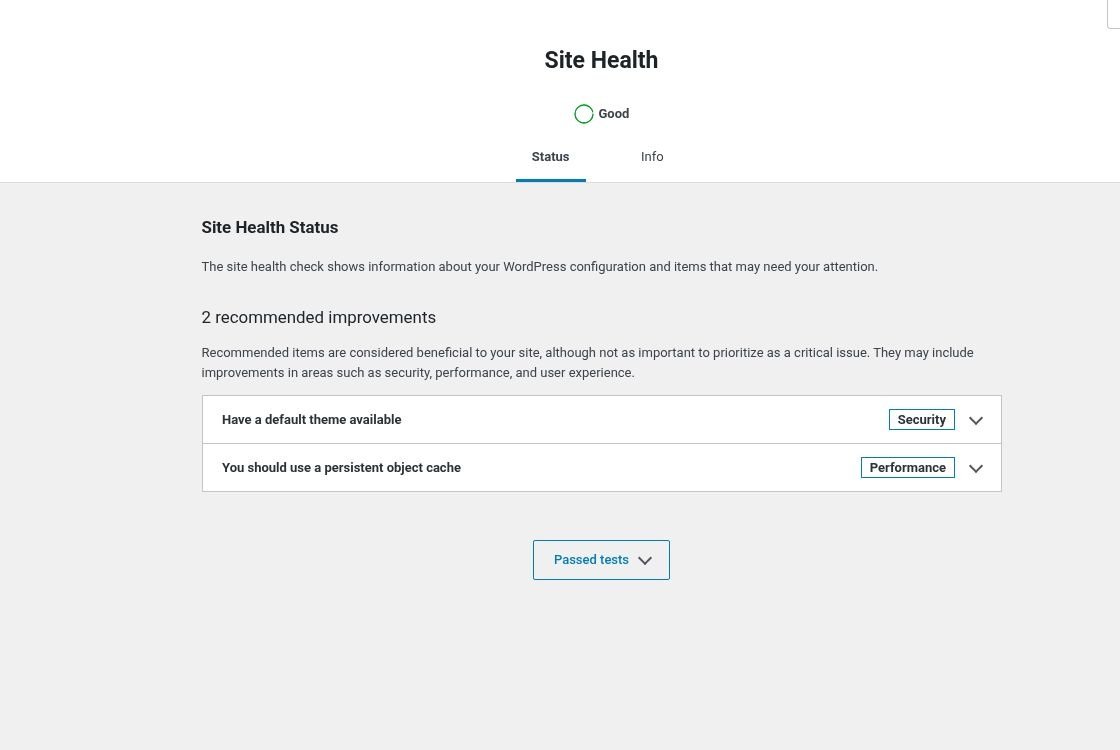
Actual site screenshot: status Good; recommendations को autoload failure नहीं कहा गया है।
इस screenshot में persistent object cache और default theme संबंधी recommendations दिखती हैं। इन्हें autoload size का diagnosis न समझें। Object cache setup availability hosting environment पर निर्भर है; plugin activate कर देने से backend cache automatically available नहीं होती।
2. Autoload test expand करके actual result दर्ज करें
Passed tests में autoloaded options वाला test expand करें। Result का count और size, audit date और environment record करें। WebTakniki के screenshot का result 718 options / 148 KB था। इसलिए इस article में “हमने भारी bloat हटाया” जैसा दावा नहीं किया गया है।

Actual WebTakniki measurement; WordPress ने इस size को acceptable बताया।
Count और bytes अलग हैं। अनेक छोटे options एक बड़े serialized payload से हल्के हो सकते हैं। हर option को हटाने से पहले कौन सा plugin/theme/code उसे पढ़ता है, यह समझना जरूरी है। एक समय की acceptable size भविष्य के growth या unrelated latency को rule out नहीं करती।
3. Environment और ownership inventory लें
Site Health → Info में relevant sections देखें। Active plugins, theme और environment का inventory diagnosis की शुरुआत है। Plugin count से culprit तय न करें; एक active plugin का छोटा configuration legitimate हो सकता है और inactive plugin की leftover option भी अभी referenced हो सकती है।
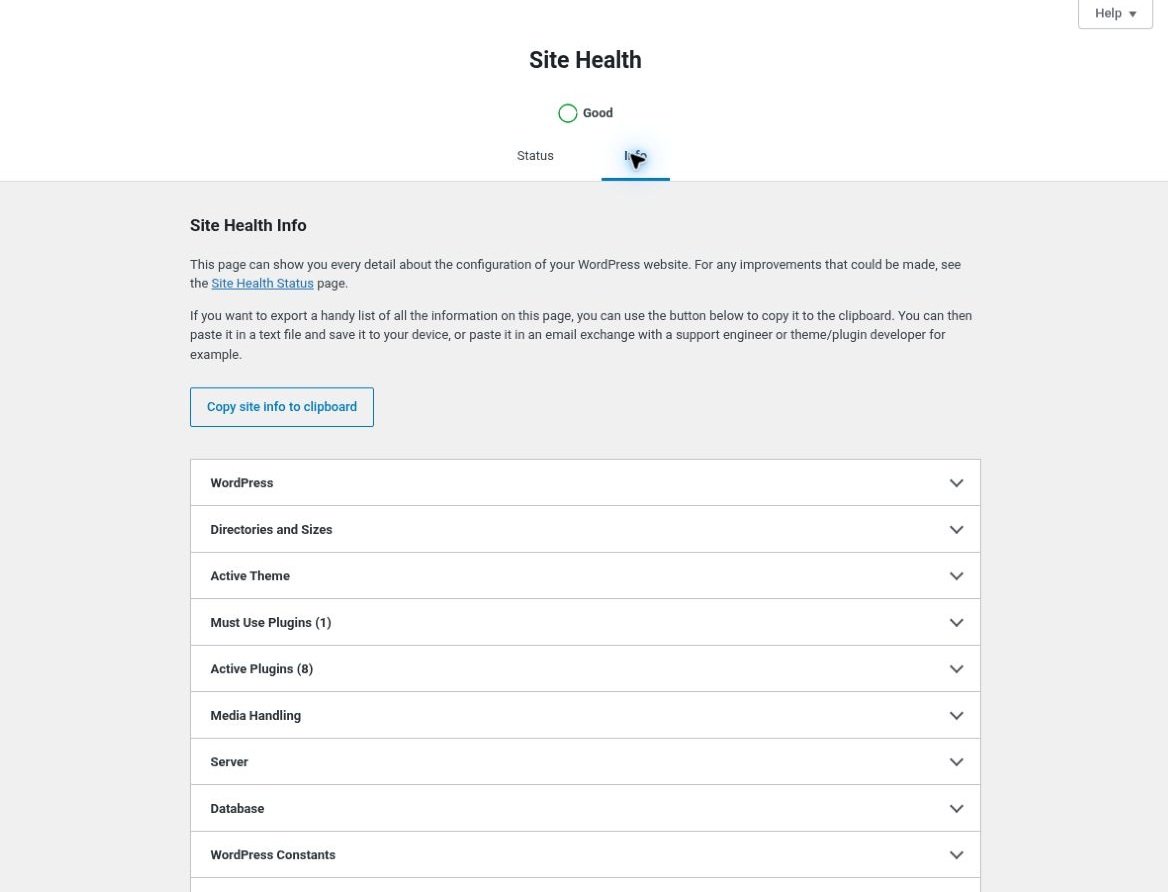
Actual admin screenshot; environment inventory के लिए reference।
Database-level diagnosis की जरूरत हो तो पहले backup और staging access लें। Actual table prefix wp_ से अलग हो सकता है। नीचे query सिर्फ option name, autoload value और byte length पढ़ती है; secret-bearing option values output नहीं करती।
SELECT option_name, autoload,
       OCTET_LENGTH(option_value) AS size_bytes
FROM wp_options
WHERE autoload IN ('yes', 'on', 'auto-on', 'auto')
ORDER BY size_bytes DESC
LIMIT 30;
SELECT COUNT(*) AS option_count,
SUM(OCTET_LENGTH(option_value)) AS total_bytes
FROM wp_options
WHERE autoload IN ('yes', 'on', 'auto-on', 'auto');ये sample queries website पर execute नहीं की गई हैं। Modern WordPress में केवल autoload = 'yes' query incomplete हो सकती है। Runtime function wp_autoload_values_to_autoload() default autoload values लौटाती है और filter से behavior बदल सकता है। इसलिए direct SQL snapshot और WordPress runtime result में अंतर हो तो उसे investigate करें; Site Health से mechanically identical मानकर न चलें।
4. Plugin ownership confirm करके cleanup decision लें
Info में Active Plugins सूची देखें और बड़े option prefix को documented ownership से map करें। Prefix matching hypothesis है; proof के लिए plugin documentation या source में option read/write देखें।

Actual Site Health screenshot; सूची में होना किसी plugin को slow या faulty साबित नहीं करता।
| Finding | सुरक्षित अगला कदम |
|---|---|
| Active plugin की जरूरी configuration | Preserve; documented loading behavior देखें |
| Historical payload तेजी से बढ़ता है | Owner plugin की retention settings और update notes जाँचें |
| Unused plugin की suspected leftover option | References और uninstall documentation verify करें |
| Large value केवल rare admin task में चाहिए | Staging में owner-aware autoload change evaluate करें |
Serialized option values को raw SQL से substring edit न करें। Option को unload करना और delete करना अलग operations हैं। WordPress की supported Options API, जैसे wp_set_option_autoload_values(), applicable versions में cache handling के साथ बदलाव करती है; direct SQL update के बाद cache invalidation की समस्या आ सकती है। किसी unknown option का mass delete या mass autoload-off इस guide का recommended fix नहीं है।
Staging change के बाद admin settings, frontend, forms, checkout, scheduled jobs और cache behavior verify करें। Measured latency/queries में improvement न दिखे तो autoload cleanup को speed fix न कहें। Restore plan और change record रखें।
Hosting और cache का संदर्भ
WordPress cache और custom plugin investigation complementary reading है। Provider comparison के लिए HostArmada vs ChemiCloud देखें। वर्तमान 148 KB measurement अपने आप migration या upgrade justify नहीं करती।
Affiliate disclosure: नीचे दिए hosting links affiliate links हैं। इनके माध्यम से eligible purchase पर WebTakniki को commission मिल सकता है। खरीदने से पहले checkout पर कीमत, renewal, limits और refund terms जाँचें। किसी diagnostic result के आधार पर provider की performance guarantee नहीं दी गई है।
Bluehost · HostArmada · ChemiCloud · FastComet · FlashCloud
FAQ
क्या 718 autoloaded options बहुत ज्यादा हैं? संख्या अकेली पर्याप्त नहीं। इस actual measurement में total 148 KB था और Site Health ने acceptable बताया।
क्या inactive plugin की हर option delete कर सकते हैं? नहीं। Ownership और remaining references verify किए बिना deletion risky है।
क्या autoload कम होते ही site fast होगी? जरूरी नहीं। Network, uncached queries, templates और third-party calls अलग bottlenecks हो सकते हैं।
स्रोत
Autoload runtime values · Supported autoload update API · WordPress Core: large option autoload changes